
Why does my CarPlay keep disconnecting? Your CarPlay may keep disconnecting when there is a connection issue between the CarPlay stereo and your iPhone.
Here in this article, we will take a look Why does my CarPlay keep disconnecting and how to fix such problems.
Read More:
How to Watch Netflix on CarPlay
Best iOS 27 Features With Apple Intelligence
Why Does My CarPlay Keep Disconnecting
Wondering why does my CarPlay keep disconnecting, as many issues could cause these issues. The most common causes are:
- Wired Connection issues (Damaged USB cable or Port).
- Wireless Bluetooth or Wi-Fi interference.
- Outdated firmware.
How Do I Stop My CarPlay From Disconnecting
Follow these steps to fix a CarPlay that keeps disconnecting:
Check Wired Connection
You may encounter connection issues if you use a bad USB cable or have an unstable USB port. Ensure you connect l good USB Cable to the USB Port of your CarPlay if you have a Wired connection.
Check your Bluetooth and Wi-Fi Connection
Wireless CarPlay connection requires you to turn on Bluetooth and Wi-Fi Connection on your iPhone.
To turn Bluetooth on:
Step 1: Go to Settings.
Step 2: Select Bluetooth.
Step 3: Toggle the Bluetooth on Button.
To turn Wi-Fi on:
Step 1: Go to Settings.
Step 2: Select Wi-Fi.
Step 3: Toggle the Wi-Fi on button.
Rename your Device
Your CarPlay can keep disconnecting if you have previously connected an iPhone with the same name. To Rename your iPhone:
Step 1: Go to Settings.
Step 2: Go to General.
Step 3: Go to About.
Step 4: Go to Name.
Step 5: Now enter a new name.
Step 6: Then reconnect your Car to CarPlay.
Forget your Car from CarPlay
Forgetting your Car from your iPhone can prevent CarPlay from cutting out. To Forget your Car:
Step 1: Go to Settings.
Step 2: Go to General.
Step 3: Go to CarPlay.
Step 4: Select your car and Select Forget This Car.
Step 5: Now reconnect your Car to CarPlay.
Manually Start CarPlay
Locate the main menu or home screen of your car display for the CarPlay icon. Click the CarPlay icon on your car’s touch screen to manually launch it.
Restart your iPhone and Car
To restart your iPhone:
Step 1: Press the volume up and volume down button.
Step 2: Then hold the power on/off button till you see the Apple logo appears and your phone switches off and on.
To restart your Vehicle:
Step 1: Turn off your vehicle.
Step 2: Then open and close the door.
Step 3: Now let the car sit for one or two minutes until your car electrical system shuts down.
Step 4: Now turn the key or press the start button.
Reset your CarPlay stereo
Resetting your CarPlay stereo screen can help to clear minor glitches. To reset your CarPlay Screen:
Step 1: Press and hold the power or volume knob for about 10 seconds until the manufacturer logo appear on the screen.
Update CarPlay Stereo firmware
Using an outdated CarPlay stereo firmware can cause connection issues. To update CarPlay Stereo firmware:
Step 1: Download the software file from your car manufacturer website on a USB drive.
Step 2: Start your car.
Step 3: Insert the USB drive into the USB port.
Step 4: Go to settings on your Car display.
Step 5: Click Firmware Update.
Step 6: Wait until update is completed and the system reboots before removing the USB drive.
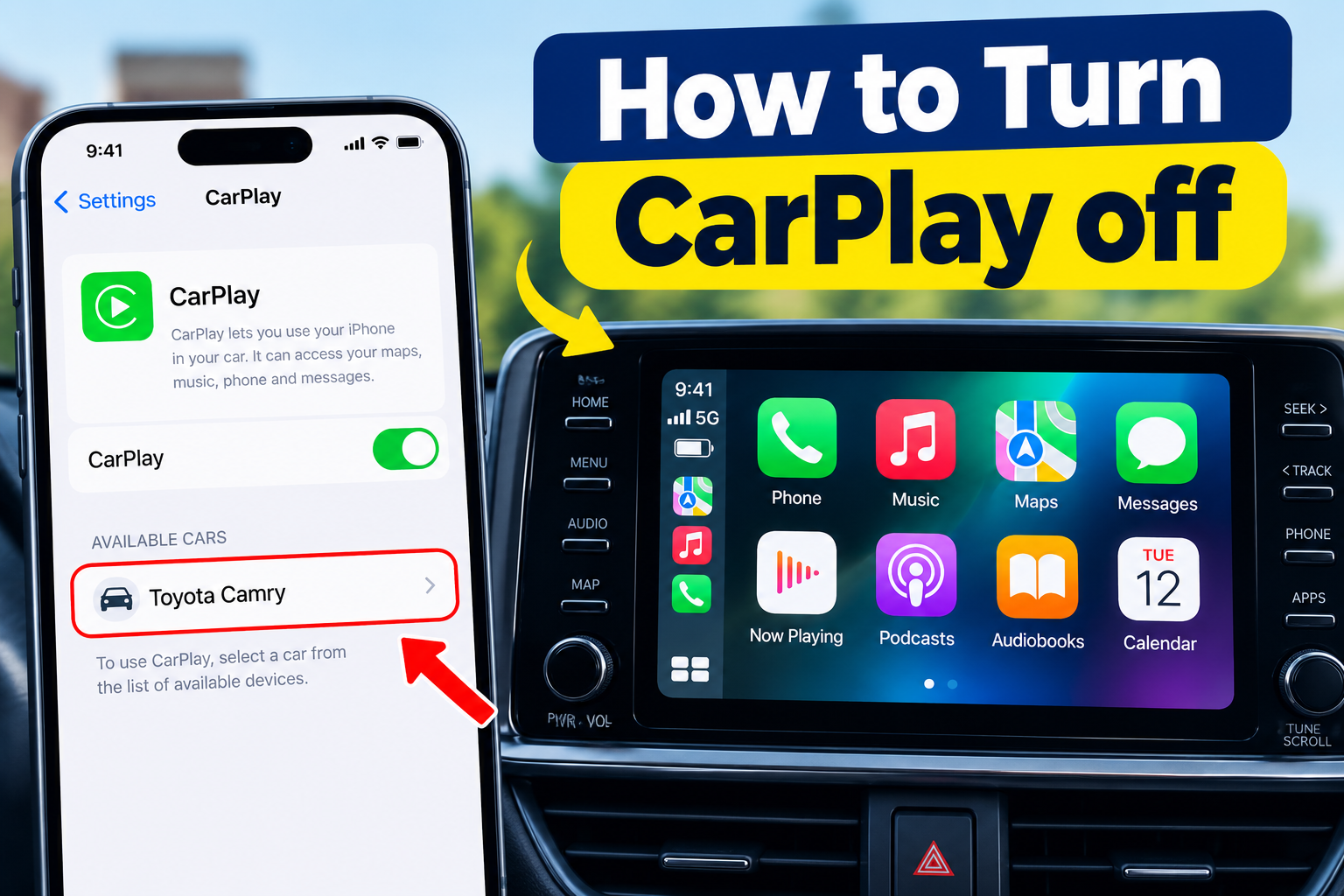
How to Turn CarPlay off
Follow these steps to turn CarPlay off:
Method 1: If you have a wired connection unplug the USB cable from the USB port.
Method 2: Turn Bluetooth and Wi-Fi off
To turn Bluetooth off :
Go to Settings > Select Bluetooth > Toggle the Bluetooth off Button.
To turn off Wi-Fi off :
Go to Settings > Select Wi-Fi > Toggle the Wi-Fi off button.
Method 3: Turn off CarPlay
To remove your iPhone from your Car Stereo:
Go to settings on your car stereo > Select your iPhone from the list of connected Bluetooth devices > Remove your iPhone.
To remove your iPhone from CarPlay :
Go to “Settings“ on your iPhone > Click “General” > Select CarPlay > Select your car from the available devices > Click forget this Car .
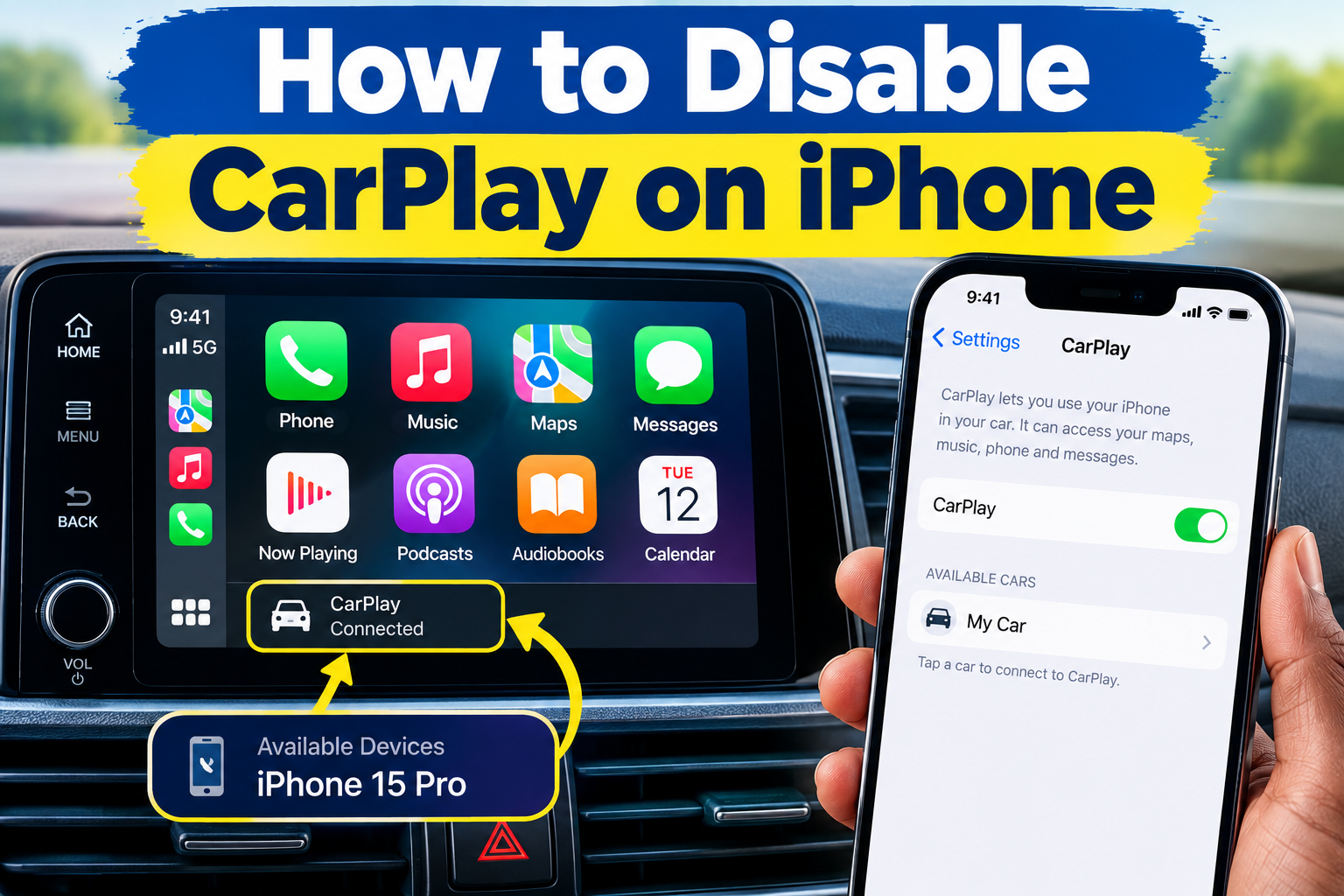
How to Disable CarPlay on iPhone
Are you getting frustrated with your iPhone automatically connecting to CarPlay or having to switch on your phone iPhone Bluetooth and Wi-Fi connection all the time?
Below are ways to disable CarPlay:
Method 1: Disable CarPlay on Car Display
Step 1: Go to settings on your car display stereo.
Step 2: Select your iPhone from the list of connected Bluetooth devices.
Step 3: Press disable, remove or forget.
Method 2: Disable CarPlay on iPhone
Step 1: Open the Settings icon on your iPhone.
Step 2: Click on General.
Step 3: Select CarPlay.
Step 4: Click the name of your car from the list.
Step 5: Click Forget This Car to remove the pairing profile completely.
Conclusion
Why Does My CarPlay Keep Disconnecting? In conclusion, an additional step to take is to update your iOS software. Although CarPlay works on almost all models of iPhone and version of iOS. Updating your iOS can help to fix software glitches and bugs.