
Why does my android auto keep disconnecting? Car display not compatible with android auto, Android phone not running on latest android OS, using a low quality USB cable for Wired connection, interference with wireless connection, and firmware glitch. These are factors that could hinder connecting to Android auto.
It can be frustrating having Android auto connecting and disconnecting while driving. This issue, often times have to do with your aftermarket firmware needing an update or using a low quality USB cable.
Here in this article, we will discuss Why does my android auto keep disconnecting and how to fix these issues.
Why Does My Android Auto Keep Disconnecting
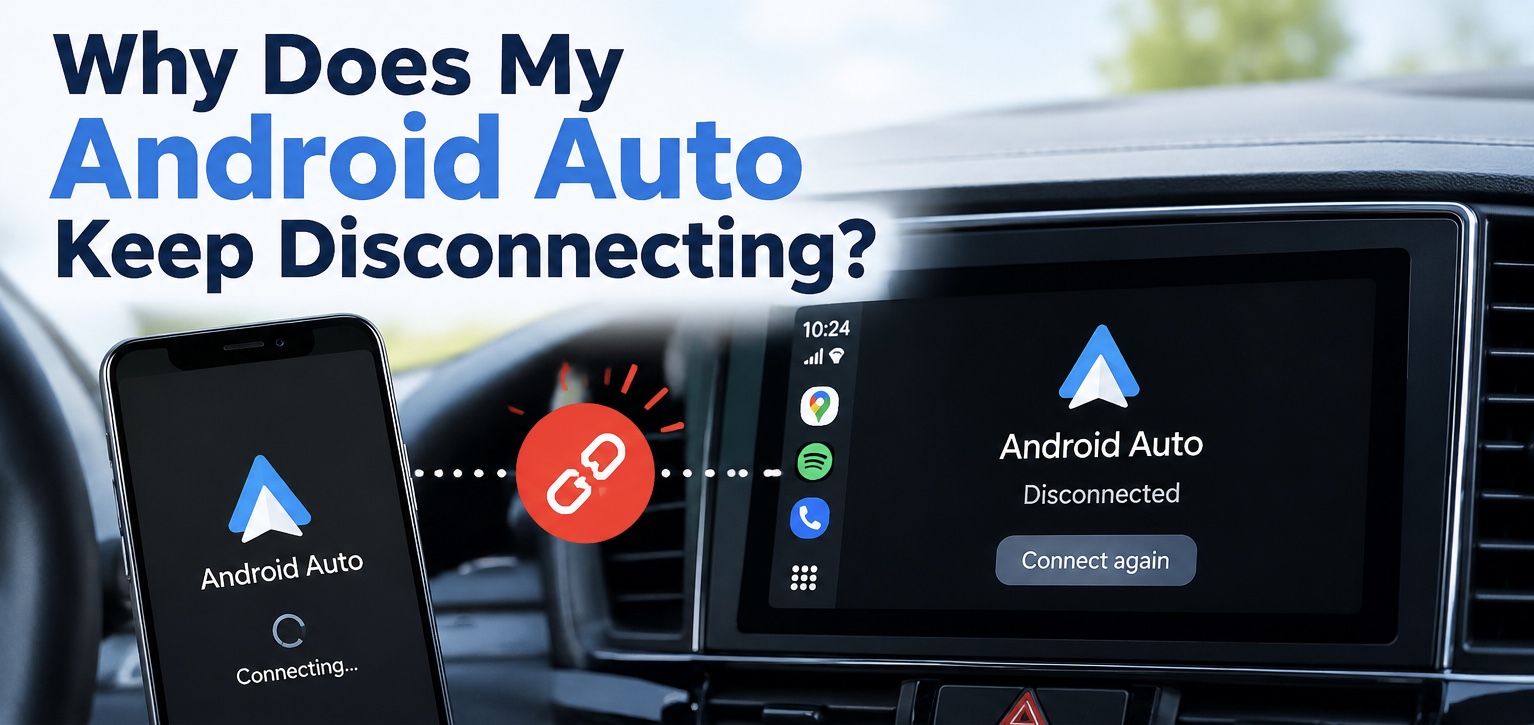
Reasons why your android auto keep disconnecting includes:
- Android Auto compatibility issue with the car display.
- Outdated android software.
- Incompatible USB cable
- Wireless connection issues.
- Outdated firmware.
How to Fix it when android auto keep disconnecting
Below are troubleshooting steps to fix when android auto keep disconnecting:
Check Android OS Version
Install the latest android version on your android phone. Ensure you have android 6.0 and above running on your android phone.
Check USB Cable
Replace your USB cable, if you have previously connected to android auto.
Most cars do have a USB -A and USB -C port side by side. Try to use an original or high-quality USB -A or USB -C cable to connect to your android phone.
Check Compatibility
Ensure you check to see if your Car and stereo supports Android Auto.
Update Android Auto
Although Android Auto comes already installed on your Android phone. You may need to update Android Auto for better performance.
To update Android Auto:
Go to Google Play store > Search Android Auto > Tap the Update button.
Check Car Display
Make sure Android Auto is turned on in your Car display. Tap the Android Auto icon on your car display to establish automatic connection.
Restart Car Display
Restarting your car display can help to clear minor glitches.
To restart your car display:
Press and hold the volume or power button down for about 30 seconds.
Forget all Cars
You maybe experiencing interference with other devices or cars when connecting to a new vehicle.
To forget previous connection:
Unplug your phone from the car > Select Menu > Settings > Connected devices > Connection preferences > Android Auto > Previously connected cars > Tap on top right menu > Tap on Forget all cars > plug your phone into the car again.
Clear Android Auto Cache
Clearing your android auto app cache can help to prevent software glitches which may have been from corrupted or overloaded temporary files.
To clear Android Auto cache:
Open the Settings app > Go into Apps > Tap on See all apps > Find and select Android Auto > Select storage & cache > Click on Clear storage and Clear cache.
Update Firmware
Updating your display firmware often helps to clear bugs and lags preventing it from from connecting to your device. Check to see if there is a firmware update available on the manufacturer website.
How to Disconnect Android Auto
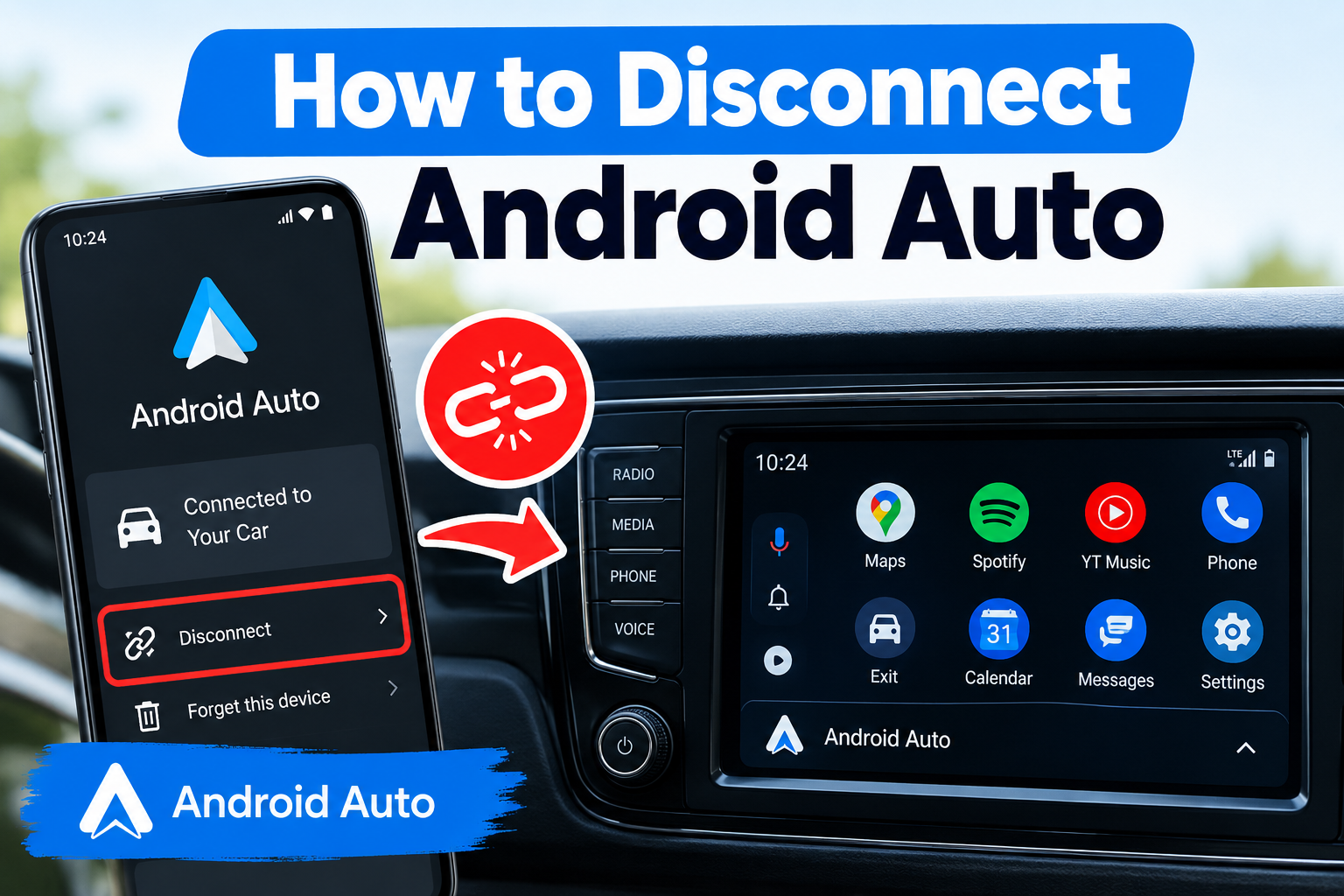
If your android auto automatically connects to your car display:
If you have a wired connection:
- Unplug your android phone from the car and use a charge only USB cable.
If you have a wireless connection:
- Go to Select Menu on your phone.
- Select Settings.
- Select Connected devices.
- Select Connection preferences.
- Select Android Auto.
- Select previously connected cars.
- Click the top right menu.
- Click Forget all cars.
Why Does My Android Auto Keep Disconnecting and Reconnecting
If android auto keep disconnecting and Reconnecting, below are possible solutions:
Unstable Wired Connection
Problem: Phones like Samsung are often selective and may not work with any USB cable.
Solution: Ensure you use an original or standard USB Cable for connection and check USB Port is stable and not shaky.
Outdated firmware
Problem: If you have an aftermarket display, and android auto is disconnecting and connecting after updating Android auto.
Solution: Updating your car display firmware helps to remove glitch and bugs that causes your device to connect and disconnect. Check your display manufacturer’s website to see if a firmware update is available.
Software Glitch
Problem: If having tried all the previous steps and you still encounter disconnection and reconnection issue.
Solution: If have android 9 and older version, you can uninstall android auto and download an older stable version from a third party site.
Conclusion
In Conclusion, several factors including compatibility issue with car display, outdated software/ firmware, low quality USB cable, Bluetooth interference and using an outdated firmware are common reasons why Android Auto keep disconnecting.