
Want to know how to watch netflix on android auto? Use an adapter or plugin Device such as Carlinkit and Ottocast or install a third party screen mirroring app to cast your android phone to your Car display.
Android auto and CarPlay do not support video streaming due to avoid distraction when driving. Streaming and video apps such as Netflix, YouTube are not supported on Android auto. Using an adapter or plugin Device or installing a screen mirroring app can allow you to watch Netflix on android auto.
Here in this article we will discuss how to watch Netflix on Android Auto using out step by step guide.
How to Watch Netflix on CarPlay
Why Does My Android Auto Keep Disconnecting (Solution)
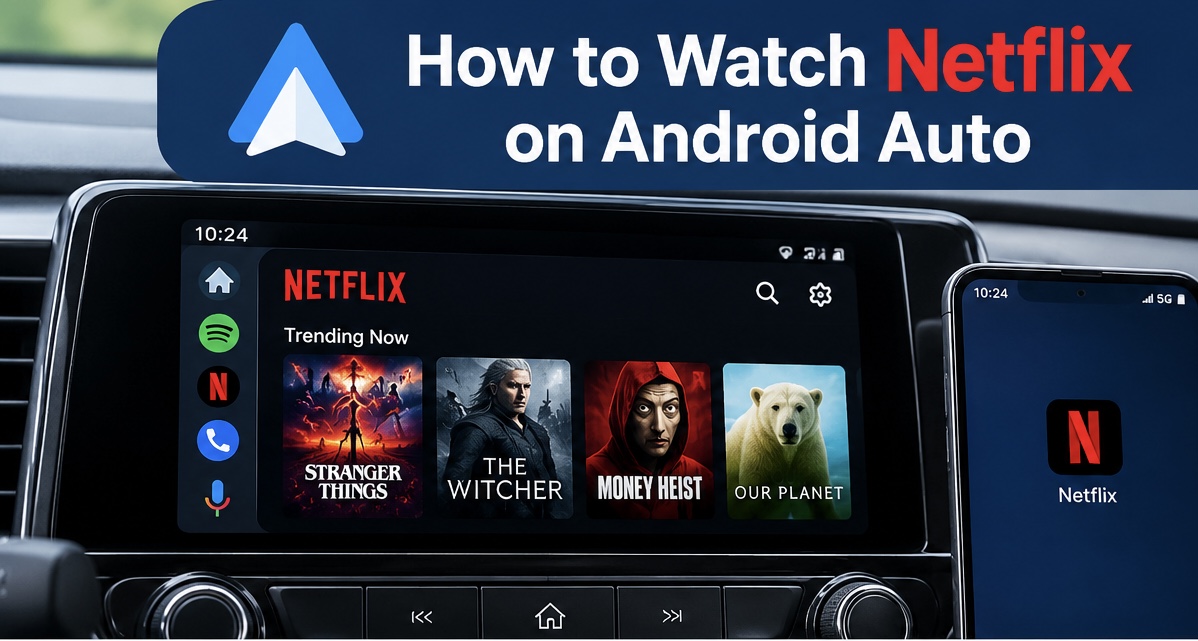
How to Watch Netflix on Android Auto
Method 1: Use an adapter or plugin Device
To watch Netflix on android auto, use an adapter or plug-in device. These devices work well with both wired and wireless connection.
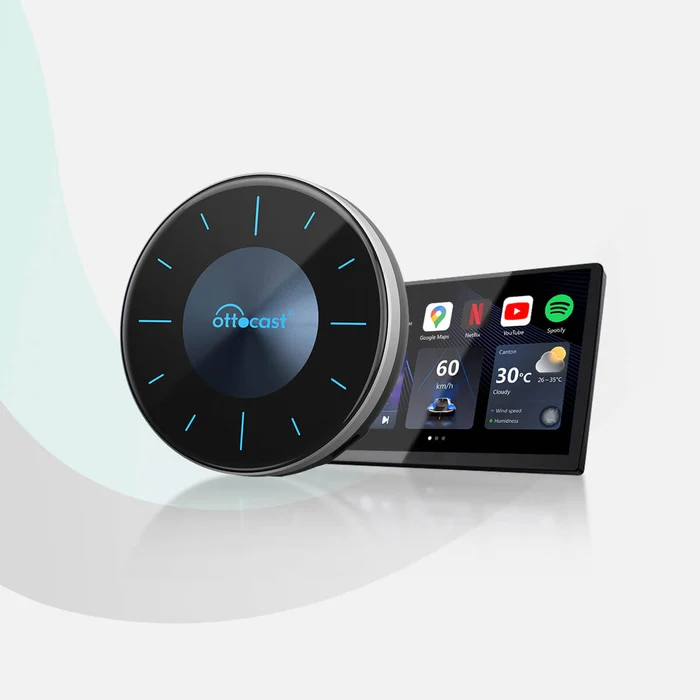
Carlinkit Adapter
Follow these steps on how to watch Netflix on android auto using Carlinkit plug-in device:
Step 1: Get a suitable Carlinkit device that’s suitable with Android Auto.
For wired Android auto connection:
Step 2: Plug the device into your vehicle’s USB port.
Step 3: After initializing, go to your car display home screen, click the android auto icon.
For wireless Android auto connection:
Step 2: Plug the device into your vehicle’s USB port.
Step 3: Click the “AutoKit” icon with your Carlinkit device model name.
Step 4: Turn on Bluetooth and Wi-Fi on your android phone.
To turn Bluetooth on: Go to Settings > Bluetooth > Toggle Bluetooth on Button.
To turn Wi-Fi on: Go to settings > Wi-Fi > Toggle Wi-Fi on button.
Step 5: Search the name of your vehicle’s Bluetooth and click to pair.
Step 6: Wait for connection to succeed. Then open the built-in Netflix app that comes with the Carlinkit box.
Step 7: Sign in with your Netflix account to start watching Netflix on android auto.
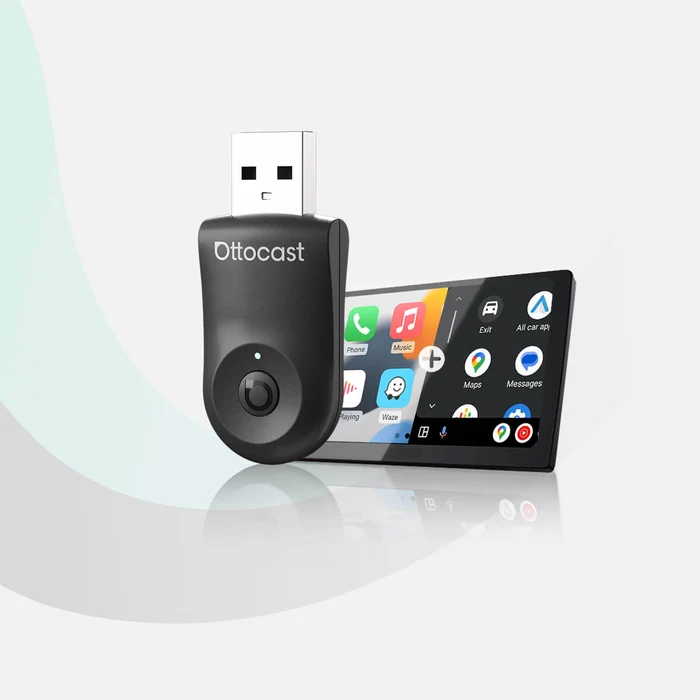
Ottocast
Follow these steps on how to watch Netflix on android auto using Ottocast plug-in:
Step 1: Get a suitable Ottocast device that’s suitable for your car display.
For wired Android auto connection:
Step 2: Get a high-quality USB cable.
Step 3: Plug into your car’s USB port and plug the other end to your phone.
Step 4: Select Android Auto icon on the screen.
Step 5: Grant permissions on your phone.
Step 6: Install Netflix app on your android phone.
Step 7: Open Netflix app and Netflix content should be displayed on your car screen through Android Auto.
If your car has a wireless Android auto connection:
Step 2: Plug the Ottocast adapter into your vehicle’s USB port.
Step 3: Toggle on Bluetooth to pair your device: Go to Settings > Bluetooth > Toggle Bluetooth on Button.
Step 4: The adapter will connect to your phone through Wi-Fi.
Step 5: Install Netflix app on your android phone.
Step 6: Next open the Netflix app and Netflix content will display on your car screen.
Method 2: Use a third party Screen Mirroring app.
Downloading a third party screen mirroring app will allow you to screen mirror your phone to watch Netflix through android auto.
To watch Netflix on android auto through third party apps:
Step 1: Go to Google Play store or a 3rd party website like Softonic. Download the app or apk file for apps such as CarStream, AA Mirror Plus, AAWireless, screen2auto, or Fermata auto.
Step 2: Connect your phone to your car via Bluetooth or high quality USB cable for Android Auto.
To connect your phone to your car via usb:
Plug your USB cable to your car USB port and phone charging port. Ensure you use a USB cable that support high-resolution video playback preferably USB version 3.1 or later.
To pair your smartphone to your car via Bluetooth:
Turn Bluetooth on: Go to Settings > Bluetooth > Toggle Bluetooth on Button.
Step 3: Select android auto on your car display screen.
Step 4: Put your car in park
Step 5: Open the screen mirroring app on your car display.
Step 6: Now open the Netflix app to start watching your favorite movie or TV show on Netflix.
How to Watch Netflix on Android Auto no Root
Follow the steps below on how to watch Netflix on android without root:
Method 1: Installing a 3rd party app such as AirdroidCast, screen2auto, or Fermata auto allow you to watch Netflix on Android auto without root by casting your phone to your car display screen.
Method 2: If you need your phone for other things and do not want to connect it to your car for the duration of the journey. Using a plug in or adapter such as Carlinkit and Ottocast is a better option. Netflix comes pre-installed and do not require rooting or any extra steps.
Does Ottocast Work With Android Auto
Ottocast works well with Android Auto, allowing you to access navigation, stream music, make calls, send messages, use voice assistants, and watch movies. Ottocast is suitable for cars with both wired and wireless CarPlay Android Auto connections.
To use an Ottocast plug-in or adapter, your vehicle must be equipped with a USB port, seamlessly converting a wired system into wireless connection. The CarPlay AI Box models such as OttoAibox P3, P3 Lite, E2 and i3 BMW, are best for video streaming apps such as Netflix and YouTube. Selecting the right Ottocast device will depend on your need.
To make Ottocast work with Android auto:
- Ensure your car display is compatible with Android Auto.
- Ensure you use a high quality cable that comes with the box.
- Update Android Auto app.
- Update the Ottocast adapter firmware.
- Enable Bluetooth and Wi-Fi connection.
- Ensure you have a stable internet connection or data.