
Having trouble with how to watch Netflix on CarPlay? Apple iOS now supports watching videos from apps that support CarPlay video or AirPlay on your iPhone. This feature is designed to work only when your vehicle is not in motion to help prevent distractions and accidents.
How to watch Netflix on CarPlay? You can use a screen mirroring app to watch video on a compatible CarPlay display. Alternatively, you can use a CarPlay adapter or plug-in device that allows you to watch videos directly on your CarPlay display without using your phone’s screen.
In this article, we will explain the different methods you can use to watch Netflix on CarPlay.
How to Watch Netflix on CarPlay
Below are the different methods on how to watch Netflix on CarPay display:
Method 1: Use a Carlink Kit to watch Netflix on CarPlay
A Carlink kit is a plug-in device that can allow you to install and watch supported video apps directly on your CarPlay display. Follow these steps on how to watch Netflix on CarPlay with Carlink kit:
Step 1: Select a suitable Carlink kit for your vehicle that supports wireless connection.
Step 2: Start your car.
Step 3: Connect the Carlink kit to the USB port in your vehicle.
Step 4: Wait a few seconds for the device to power on and display the CarPlay interface.
Step 5: Turn on Bluetooth and Wi-Fi on your iPhone.
Step 6: Open Bluetooth settings on your iPhone and select the Carlink Bluetooth device name displayed on your vehicle’s CarPlay screen.
Step 7: Turn on your internet connection. Make sure you have an active mobile data or Wi-Fi connection. Go to Settings > Mobile Data and turn on Mobile Data, or go to Settings > Wi-Fi and connect to an available Wi-Fi network.
Step 8: Open Netflix on your CarPlay display and select the content you want to watch.
Method 2: Use Ottocast to Watch Netflix on CarPlay
Ottocast is another type of plug-in device that can allow you to watch supported video content on your CarPlay display. Follow these steps to use an Ottocast device to watch Netflix:
Step 1: Select a suitable Ottocast device. Check its price, model, compatibility, and functionality before purchasing.
Step 2: Connect the Ottocast device to the USB port in your vehicle.
Step 3: Start your car.
Step 4: Turn on Bluetooth and Wi-Fi on your iPhone and pair it with the Ottocast device.
Step 5: Configure your vehicle’s settings by opening the settings menu on your car’s infotainment system.
Step 6: Select Ottocast Wireless CarPlay as your preferred source.
Step 7: Open the Netflix app, or download it if necessary, and start watching your content.
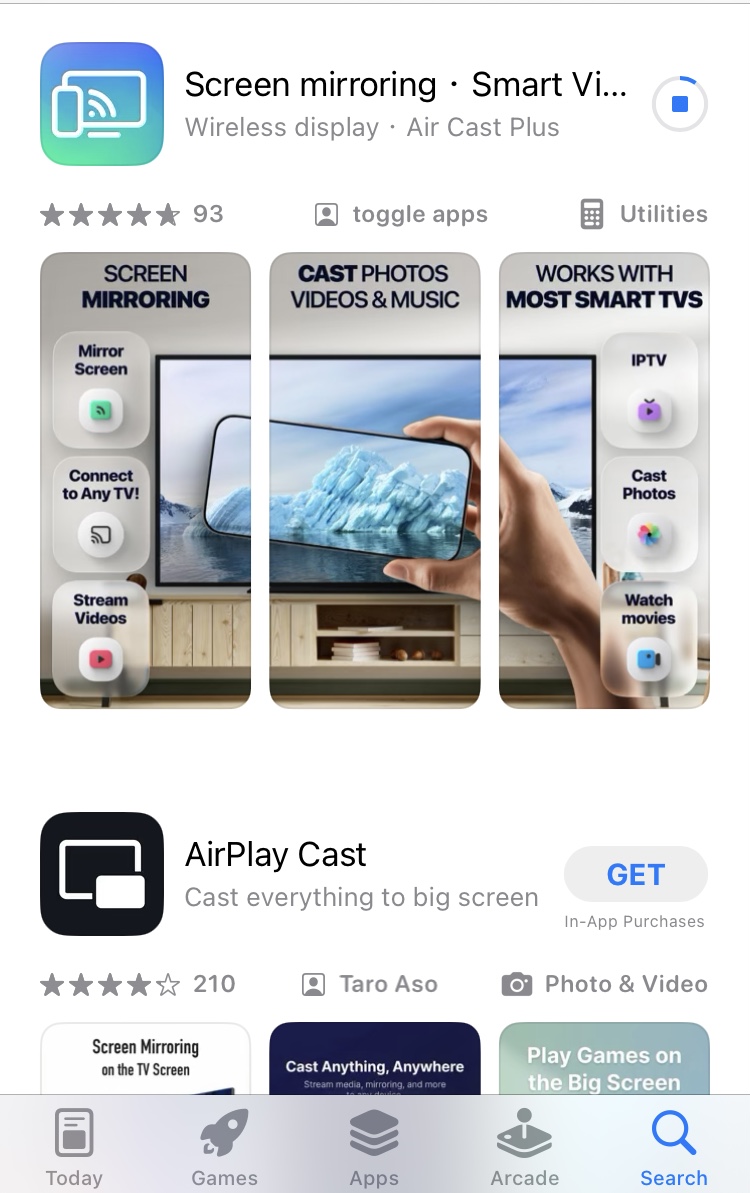
Method 3: Use Screen Mirroring on Your iPhone to Watch Netflix on CarPlay
You can also use a third-party screen-mirroring application to mirror your iPhone’s screen to a compatible CarPlay display.
Step 1: Open the App Store on your iPhone.
Step 2: Tap the search icon and search for “Screen Mirroring.”
Step 3: Choose a suitable screen-mirroring application and tap Get to install it.
Step 4: Open the Netflix app on your iPhone, or download it from the App Store if you haven’t already installed it.
Step 5: Put your car stereo in wireless or Bluetooth mode.
Step 6: Connect your iPhone using Wi-Fi or a USB cable, depending on the requirements of your vehicle and mirroring application.
Step 7: Select CarPlay Network, then go to Settings > General > CarPlay on your iPhone and select your vehicle.
Step 8: Open the screen-mirroring application and follow its instructions to mirror your iPhone’s screen to the compatible CarPlay display.
Step 9: Open Netflix on your iPhone and select the content you want to watch.
Method 4: Use an Amazon Fire TV Stick
You can also use an Amazon Fire TV Stick together with a FireDrive Link adapter to watch Netflix on a compatible CarPlay display.
Step 1: Get an Amazon Fire TV Stick and a FireDrive Link Pro kit.
Step 2: Connect the Amazon Fire TV Stick to the HDMI port on the FireDrive Link. Make sure the connectors are properly aligned.
Step 3: Connect the Micro-USB cable to the corresponding ports on the Amazon Fire TV Stick and FireDrive Link.
Step 4: Plug the USB-C cable included with the kit into the front of the FireDrive Link.
Step 5: Connect the other end of the cable to the USB port in your vehicle and connect the power supply cable to the appropriate power port.
Step 6: Tap the CarPlay icon on your vehicle’s display.
Step 7: The Fire TV interface should automatically load on the compatible display.
Step 8: Using the Fire TV Stick remote control, go to Settings and turn on Wi-Fi.
Step 9: Turn on the Personal Hotspot on your iPhone and connect the Fire TV Stick to the hotspot.
Step 10: Open the Netflix app on the Fire TV Stick and select the content you want to watch.
Conclusion
To conclude on how to watch Netflix on CarPlay, using a suitable CarPlay plug-in device will allow you to install and watch video apps directly on CarPlay. Depending on your vehicle connection, they mostly work on vehicles with wired connection ( USB port) and wireless connection ( Bluetooth and Wi-Fi).
Although Netflix no longer supports Airplay and Screen Mirroring. Downloading a third party Screen mirroring app will allow you to cast your iPhone screen to watch Netflix on CarPlay.
Note: Video playback should only be used when the vehicle is parked and it is safe to do so. Do not watch Netflix or operate video equipment while driving, as this can distract the driver.