
Using a wireless Ai box, installing a screen mirroring app or use fire TV, and using an Amazon Fire TV Stick are ways how to watch YouTube on Android Auto.
Although Android auto do not support watching videos when driving for safety purpose. Using a third party app or hardware adapters while your car is on park will allow you watch videos on Android auto.
Here in this article, we will show you our step by step guide how to watch youtube on android auto without root.
How to Watch Netflix on Android Auto
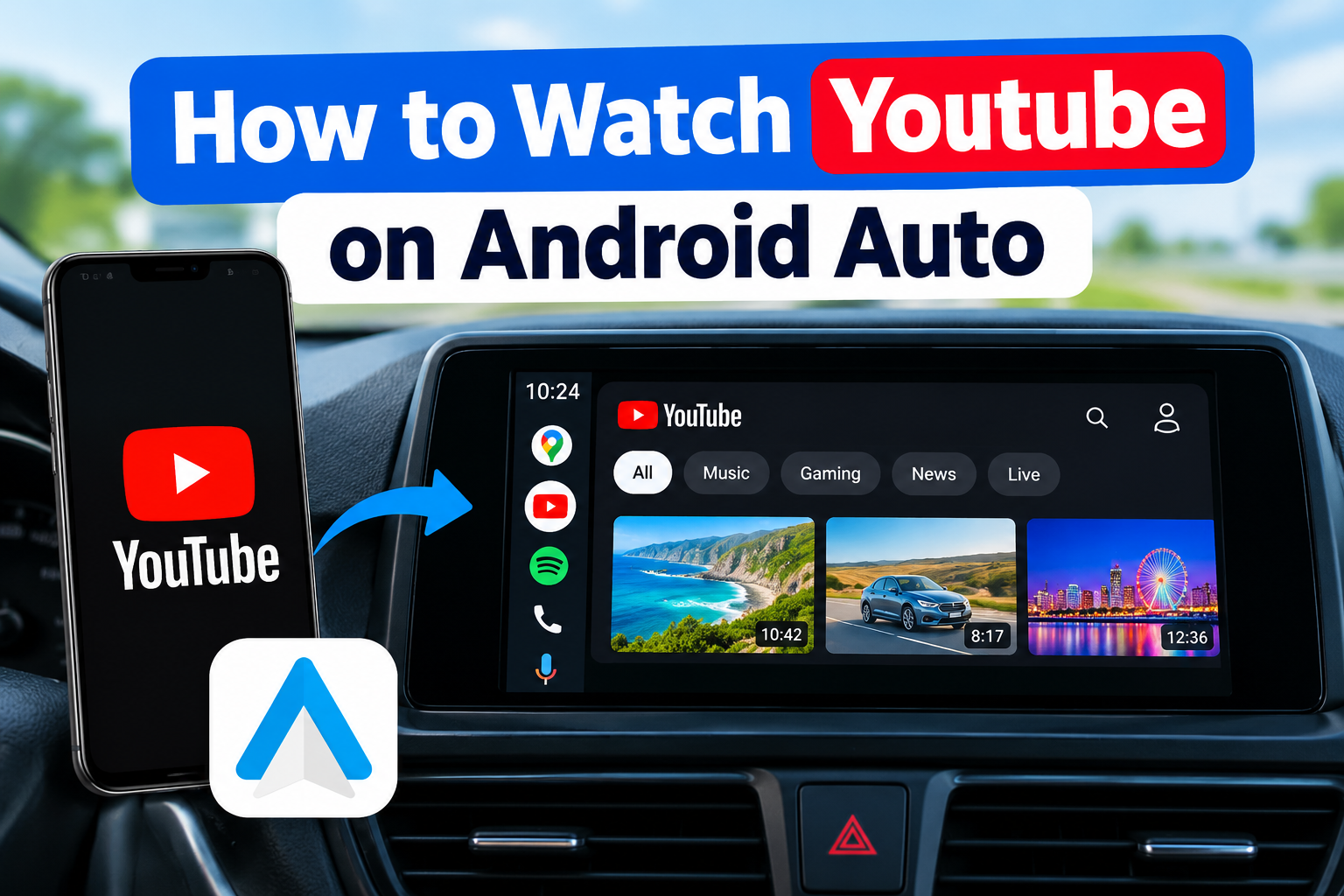
How to Watch Youtube on Android Auto
Method 1: Use a wireless adapter or plug-in
A wireless adapter or plug-in such as Magic Box 3.0, Carluex, and Ottocast, allow you to watch YouTube on android auto. These devices work well with Android auto by connecting to the vehicle’s USB port.
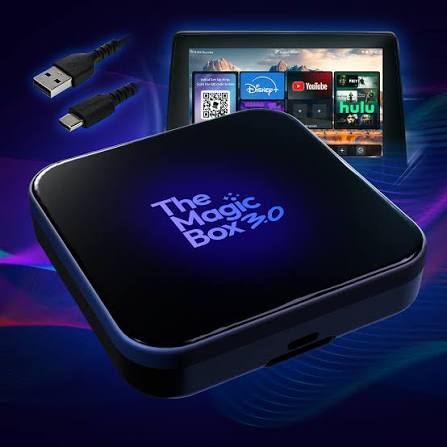
Magic Box 3.0
Follow these steps on how to watch YouTube on android auto using Magic Box 3.0:
Step 1: Insert the USB Cable into the Magic Box device.
Step 2: Plug the other end of the USB Cable into your vehicle’s display USB port.
Step 3: The Magic Box will first display a Solid blue light, then display a flashing blue light.
Step 4: Select Enable for Apple CarPlay on your vehicle’s display screen when promoted.
Step 5: Select “Agree and Accept” to confirm the safety warning.
Step 6: Select Android Auto as your preferred launch mode.
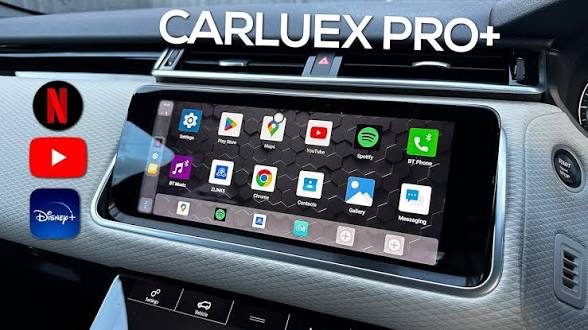
Carluex
Follow these steps on how to watch YouTube on android auto using Carluex:
Step 1: Get a suitable Carluex adapter for your car.
Step 2: Connect the box to your car’s USB port using the included USB cable.
Step 3: Start your car to automatically power on the box.
Step 4: Turn on your car’s display and enable Bluetooth. Open your android phone: Go to Settings > Connected devices > Bluetooth > then turn on Bluetooth.
Step 5: Select your car Bluetooth from the list of available devices.
Step 6: Now follow the on-screen instructions to complete the pairing process.
Step 7: Launch the pre-installed YouTube app to start streaming.
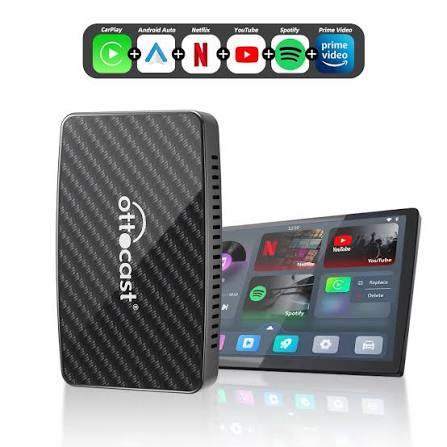
Ottocast
Follow these steps on how to watch YouTube on android auto using Ottocast adapter:
Step 1: Select a suitable Ottocast device for your need.
To use wired Android auto connection:
Step 2: Get a high-quality USB cable.
Step 3: Insert into your car’s USB port and the other end to your phone.
Step 4: Select the Android Auto icon on the screen.
Step 5: Grant permissions on your phone.
Step 6: Install YouTube on your android phone.
Step 7: Open the YouTube app and the content will appear on your car screen.
To use a wireless Android auto connection:
Step 2: Plug the Ottocast adapter into your vehicle’s USB port.
Step 3: Turn on your phone’s Bluetooth and Wi-Fi to pair with your car:
To turn Bluetooth on: Go to Settings > Bluetooth > Toggle Bluetooth on button.
To turn Wi-Fi on: Go to settings > Wi-Fi > Toggle Wi-Fi on button.
Step 4: The adapter will connect to your phone through Wi-Fi.
Step 5: Install YouTube on your android phone.
Step 6: Open the YouTube app to cast the content on your car display screen.
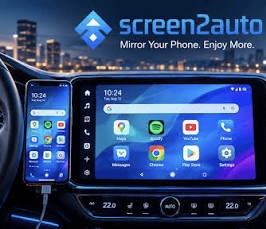
Method 2: Use a Screen Mirroring app
You can install a screen mirroring app from google play store or a third party website to watch YouTube on Android auto.
You will need to follow these steps to watch YouTube on Android auto:
Step 1: Go to Google Play store or a 3rd party store such as Softonic, AAAD etc. Install the app or download the apk file for apps such as CarStream, AA Mirror Plus, AA Wireless, Screen2auto, or Fermata auto.
Step 2: Put your car in park.
Step 3: Configure the App on your Phone: Open the app > Go to Settings > Turn on Enable desktop mode.
Step 4: Configure the Android Auto app: Open the Android Auto app > toggle the three dot at the top right corner > developer settings > application mode > toggle on Unknown sources.
Step 5: Connect your phone to your car via Bluetooth or use a high quality USB cable for Android Auto.
Step 6: To connect your phone to your car via usb: Plug your USB cable to your car USB port and phone charging port.
Step 7: To pair your smartphone to your car via Bluetooth: Go to Settings > Bluetooth > Toggle Bluetooth on Button.
Step 8: Go to your car display screen. Open the screen mirroring app and open the YouTube app.
Note: Steps may vary depending on the screen mirroring app selected.